PIN-based broadcast approval
The new PIN verification feature enables you to activate broadcasts using a secure 4-digit PIN. You can approve your broadcasts directly, which reduces turnaround time and improves efficiency. This process adds an extra layer of protection for your account because you use a PIN that only you know and replaces the earlier manual broadcast approval step by the mCommons admin team.
Benefits:
• You can approve broadcasts directly, reducing broadcast approval time.
• Secure PIN-based approval adds an extra security layer.
• Makes it faster and easier for you to send broadcasts while maintaining strong security standards across the platform.
Setting up a PIN
Users who have permission to activate broadcasts (including Editors and Account Editors) must create a PIN and use it when activating broadcasts.
When you activate a broadcast for the first time, you must have a broadcast approval PIN. To generate your broadcast approval PIN:
1. Go to My Account.
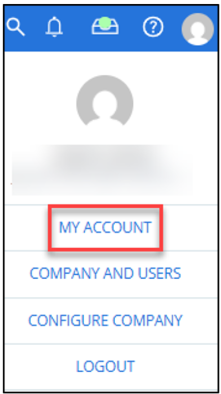
2. Click Generate Approval PIN.
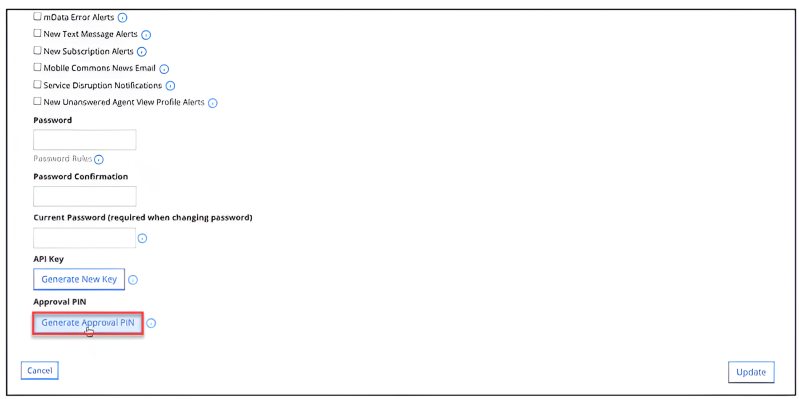
You will receive an email with instructions for setting your 4-digit PIN.
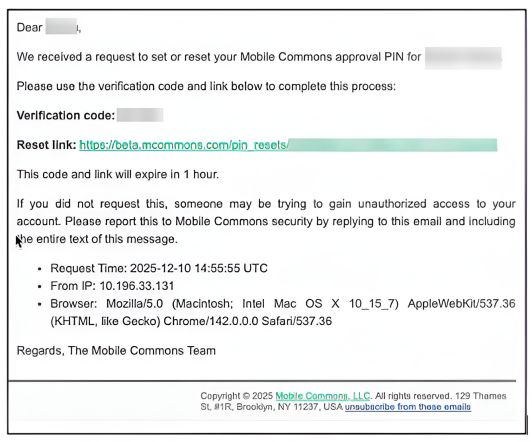
The verification code included in the email is required to complete the PIN setup.
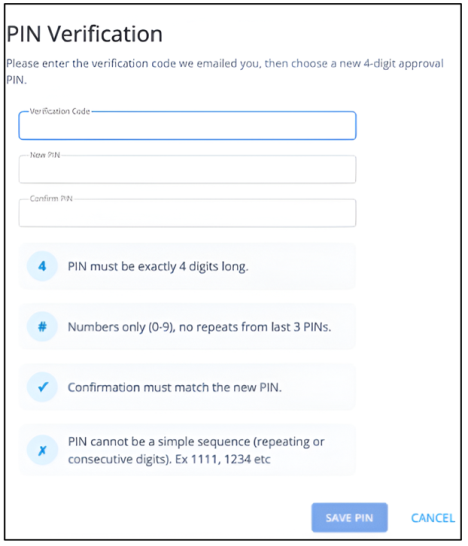
Once you save the PIN, you will be redirected to the page from which you requested the PIN generation.
Notes for PIN Activation and Approval:
• If a user has permission to send broadcast directly:
-
They will see the Confirm PIN modal during activation.
• If a user is set to Require Broadcast Approval:
-
The Confirm button in the broadcast confirmation modal does not allow scheduling of broadcast.
-
Instead, the broadcast moves to Needs Approval.
• When an Account Editor views that broadcast:
-
They see the Approve button. Clicking this button opens the Confirm PIN modal.
Activating a broadcast using a PIN
For activating the broadcast using a PIN:
1. Create a broadcast.
2. After reviewing and confirming the broadcast details, enter your 4-digit PIN in the Approval PIN field.
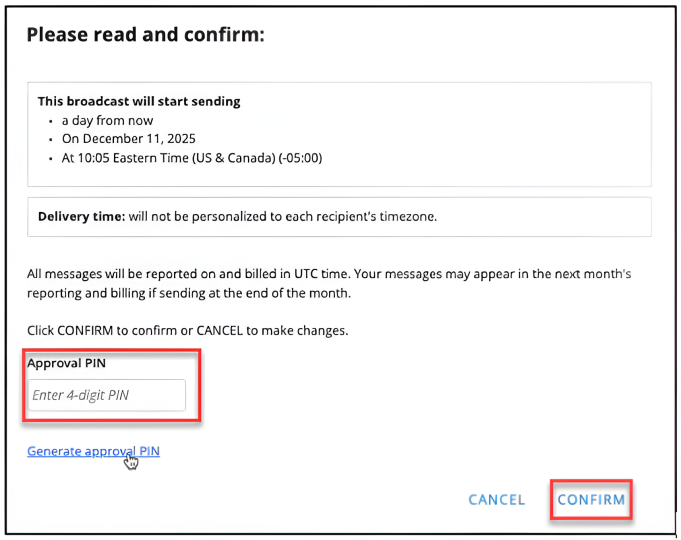
You can also generate or reset a broadcast approval PIN using Generate Approval PIN or Reset PIN links available on the above confirmation modal.
Note: If you enter an incorrect PIN, the error message appears: Invalid approval PIN. (Number) attempts remaining. You have a total of 5 attempts to enter the correct PIN. If you enter an invalid PIN 5 times, you must reset your PIN before you can activate broadcasts again.
3. Click CONFIRM. The broadcast is now activated.

If a broadcast requires approval, the approver will receive an email notification only when the “Broadcast Scheduled for Approval Alert” preference is enabled.

If a campaign-restricted user has scheduled any broadcast, that broadcast will appear in the broadcast list with the status “Needs Approval.”
To access the broadcast that is created by a campaign-restricted user and needs approval, navigate directly to that broadcast within the broadcasts list in mCommons.
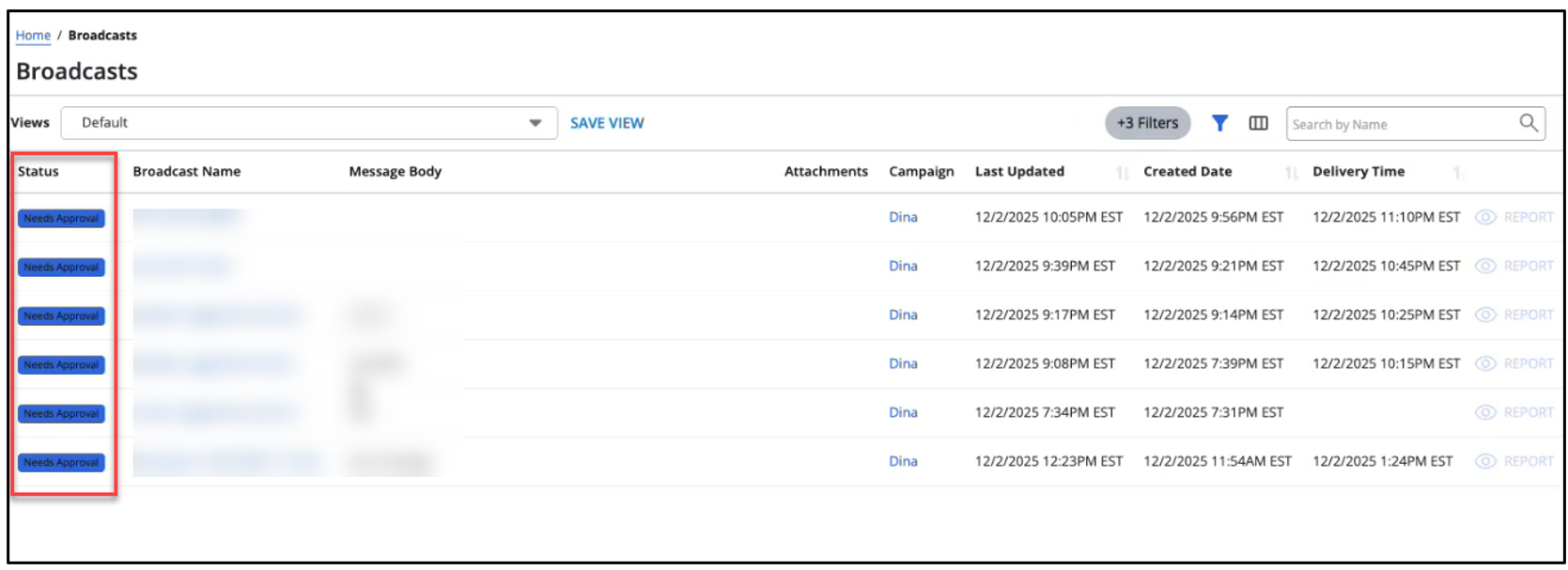
Select Approve Broadcast from the ACTIONS menu of the broadcast to approve.
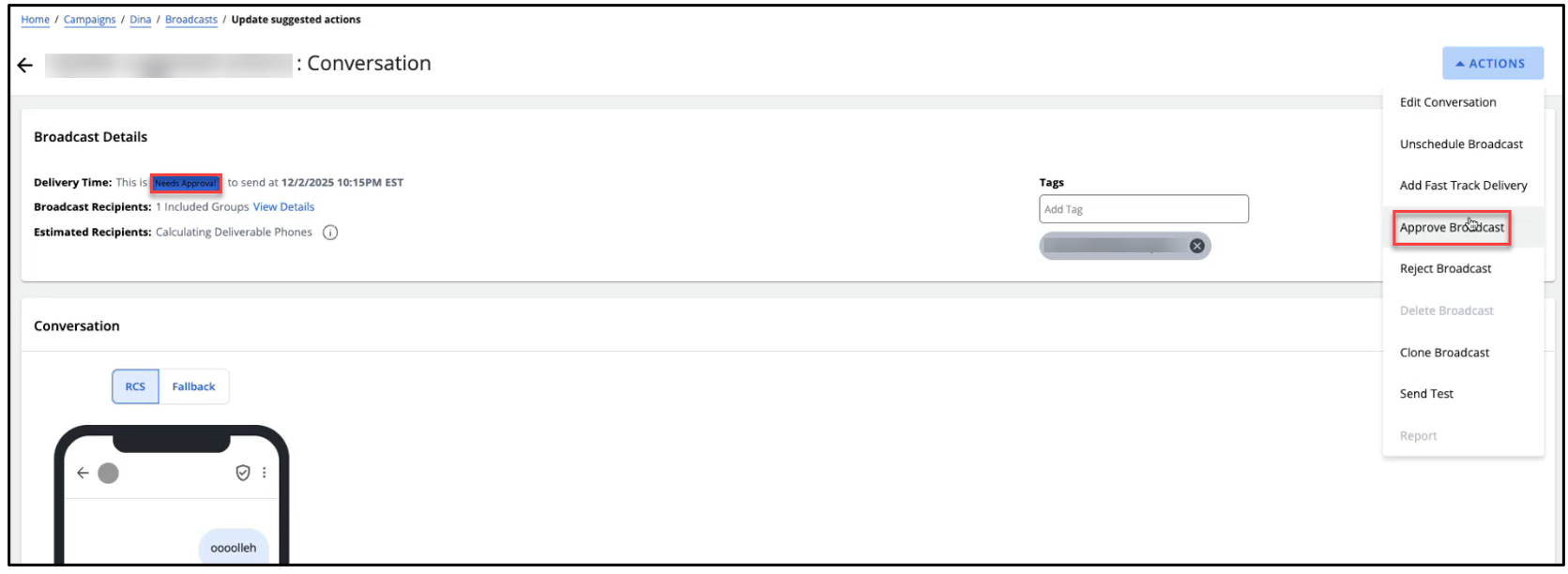
Enter the secure 4-digit PIN in the Approval PIN field.
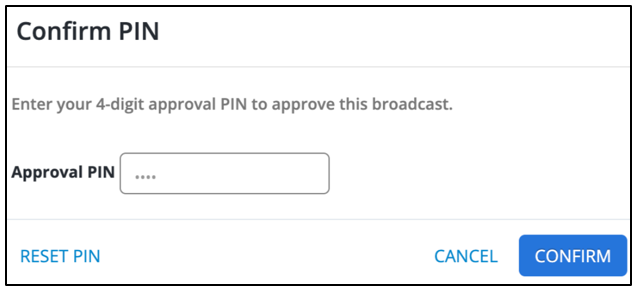
You can also generate or reset a broadcast approval PIN using Generate PIN or Reset PIN links available on the above "Confirm PIN" modal.
Click Confirm to activate the broadcast. The broadcast is now activated.

Note: Broadcast approval requirement is based on the user role and settings configured under Company > Users.
• If a broadcast requires approval for users with lower privileges:
-
Their broadcast will always go to the Needs Approval stage.
-
They cannot activate a broadcast directly using a PIN. Their broadcasts must be approved by a role with higher-level access.
• Users with higher privileges like Account Editor can:
-
Approve broadcasts from limited-access users.
-
Enter their own PIN to approve another user’s broadcast.
The table below provides information about the PIN approval flow based on user roles.
| User Role | PIN Approval Flow |
|---|---|
| Editor + Account Editor |
Can access the PIN flow when activating or approving any broadcast. |
| Editor + Limited Campaign Editor |
Can access the PIN flow when activating or approving any broadcast. |
| Editor + Broadcast Require Approval | Can only schedule broadcasts without the PIN flow. After scheduling, the broadcast moves to the “Needs Approval” state. The user does not have Approve/Reject options. |
| Editor + Agent View Only | Does not have access to any campaign, broadcast, or related pages. Therefore, no PIN flow is available. |
| Editor + Limited to Campaign Access | Has access to the PIN flow only for the specific campaigns assigned in the user settings. |
For any questions about setting up or using your PIN, contact the mCommons support team at mc_support@mobilecommons.com.